
Bynder Jahia Integration
Access and use your Bynder DAM assets right inside your Jahia CMS/DXP
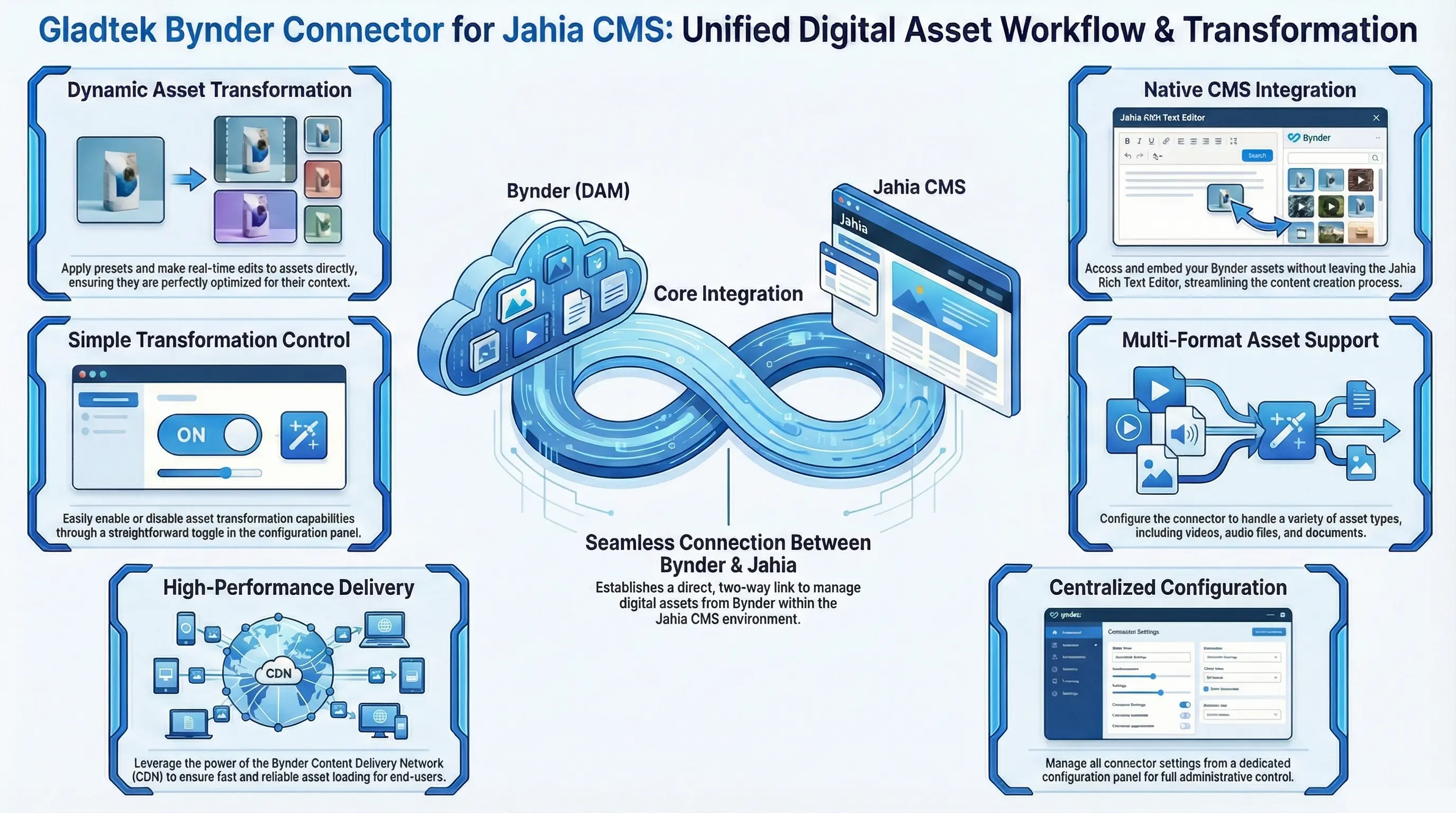
Centralize, organize, and streamline access to all your brand’s digital assets, ensuring consistency, speed, and collaboration across teams.
Benefits
Centralized & Streamlined Asset Management
Assets (pictures, videos, audio, files) are managed exclusively in Bynder, eliminating the confusion and time wasted searching for files across different locations.
Enhanced Brand Consistency and Quality
Editors can easily apply pre-defined Bynder presets to images, ensuring brand-approved usage and visual consistency across the website.
By linking directly to Bynder, you ensure that editors are always using the most recent, approved, and compliant versions of all digital assets.
Improved Performance and Asset Optimization
The connector allows you to use Bynder’s powerful transformation features eliminating manual editing.
Transformed and final assets are served directly from Bynder CDN, which improves website loading speed and overall performance for your visitors.
Want a dedicated demo ?
Interested in a demo ? Reach out to us, request a personalized walkthrough.
Access Your Bynder DAM Inside Jahia CMS
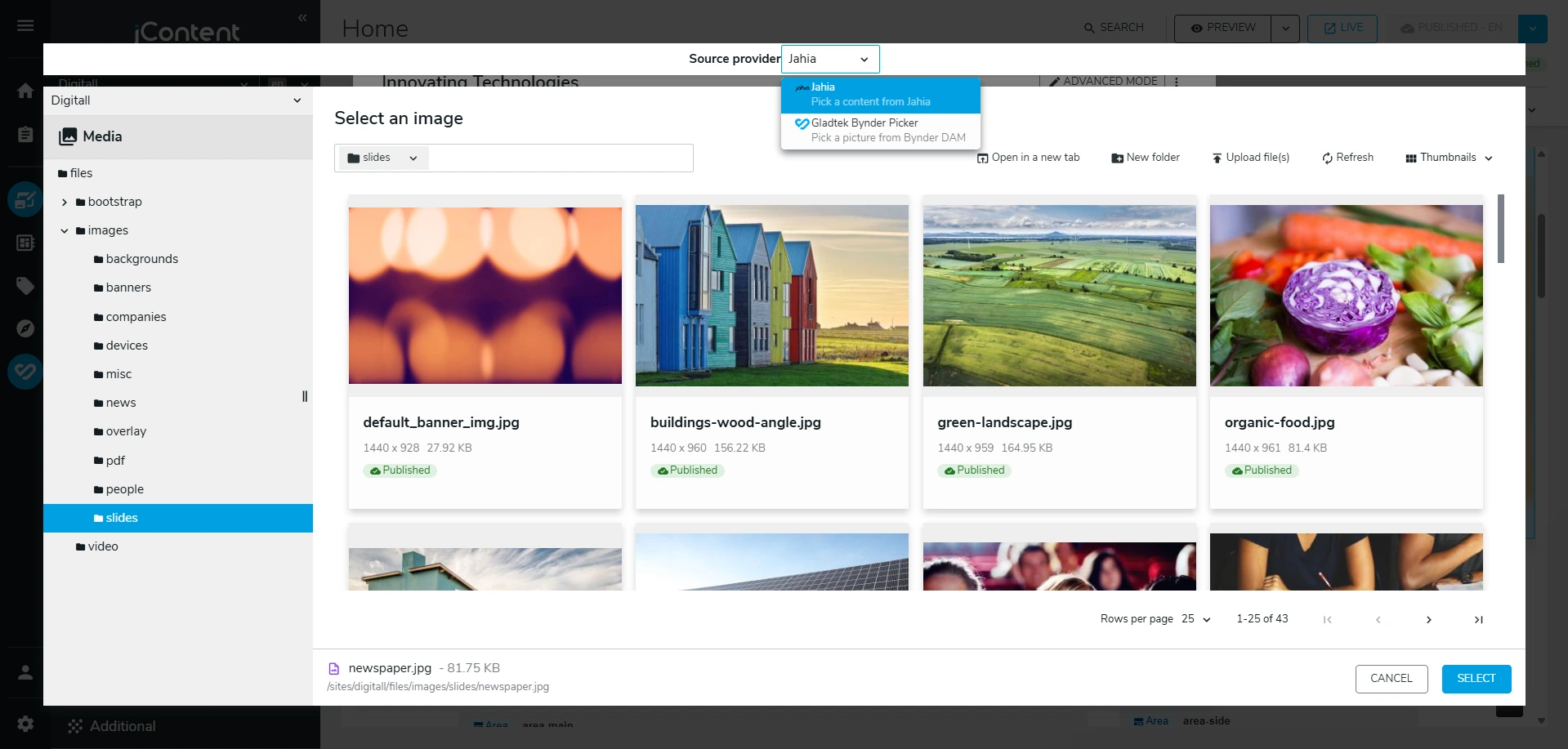
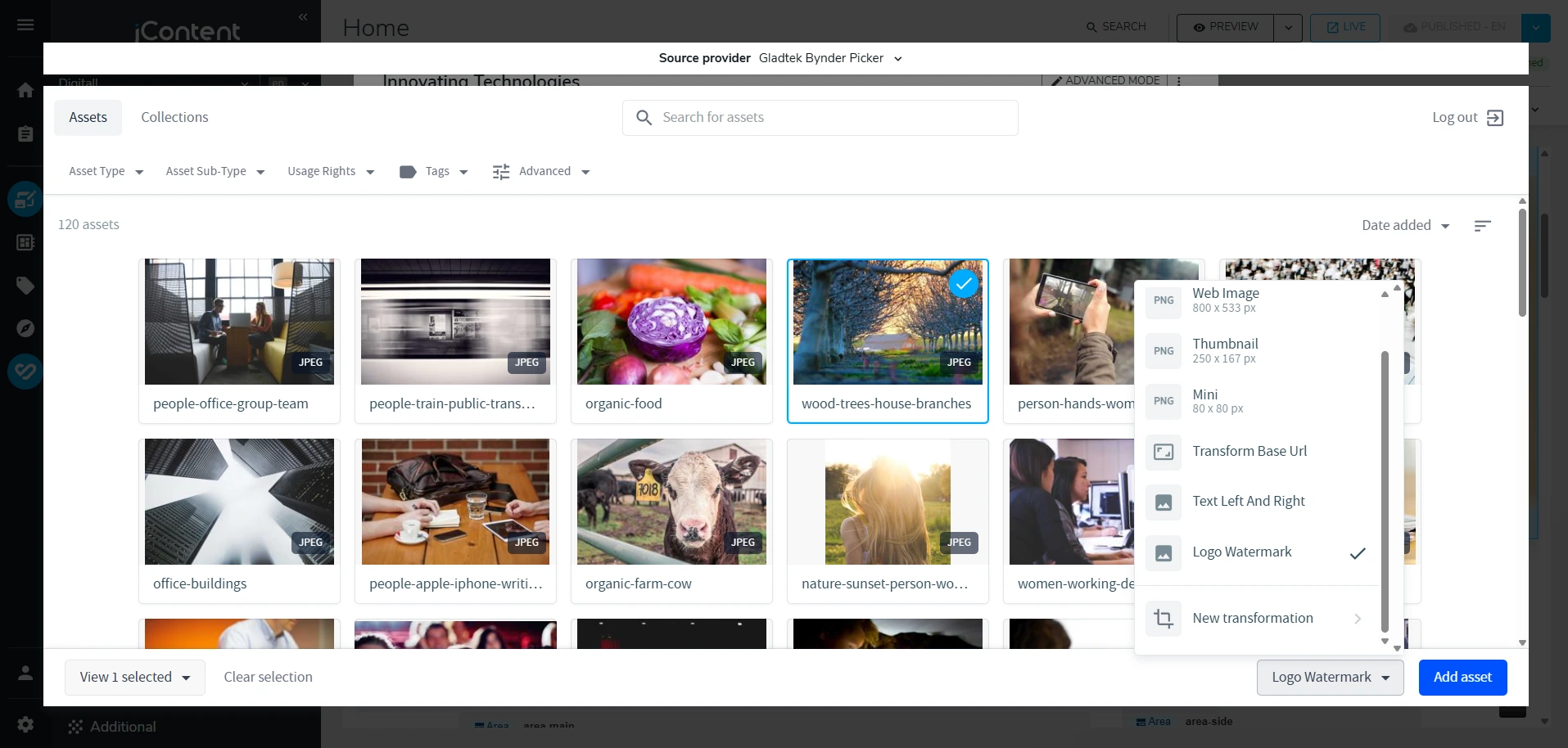
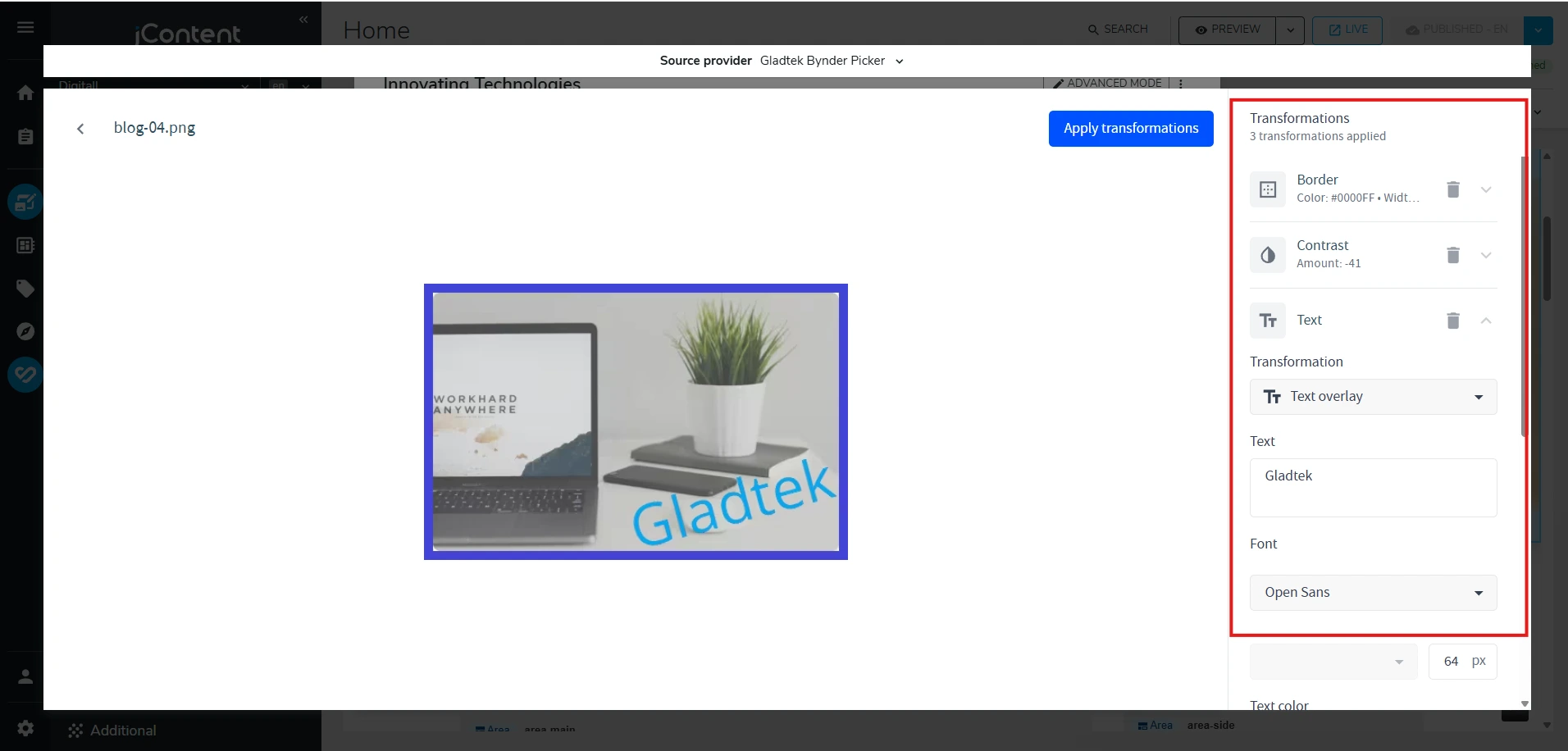
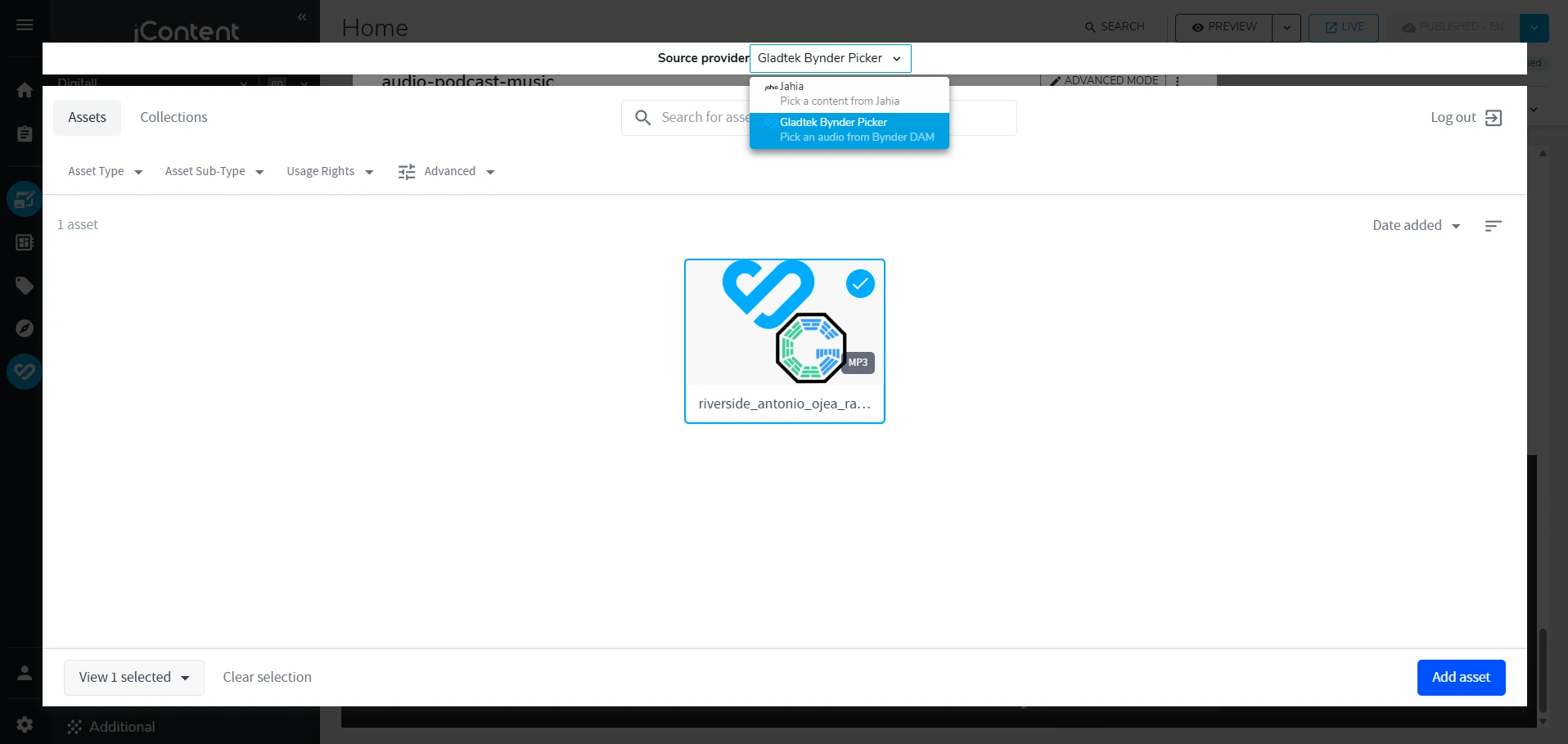
A visual walkthrough of the Gladtek Connector user interface. See how content authors select, preview, and apply brand-approved transformations to all asset types (images, videos, documents) directly within the Jahia editing environment.
Features
Discover the features included in this Bynder integration into Jahia.
Asset Sourcing and Performance
Ensures that digital assets used in the CMS originate from and are managed within Bynder, avoiding duplication and version control issues.
Configuration and Customization
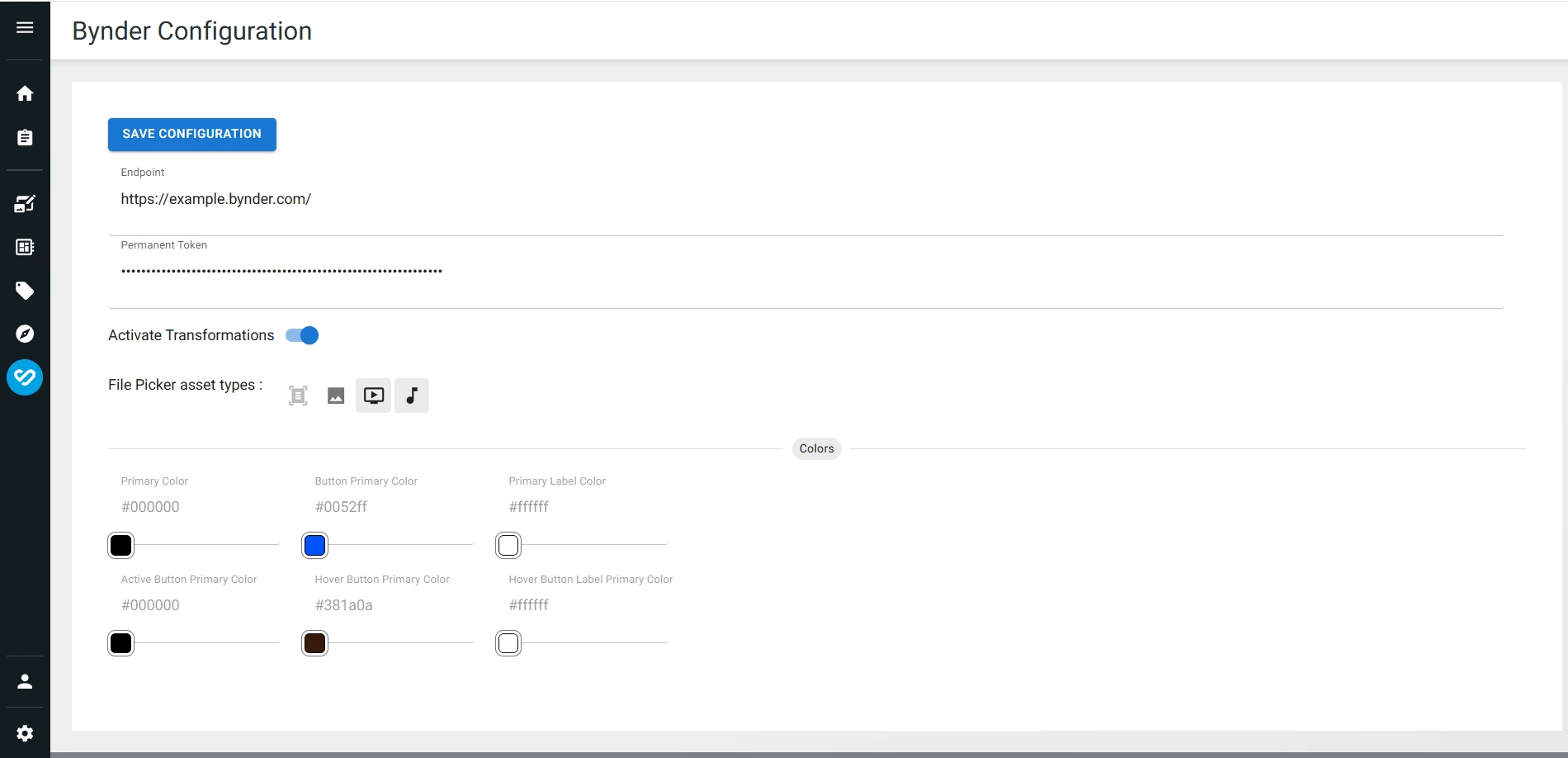
Includes a dedicated configuration panel within Jahia to manage connector-specific settings.
Dynamic Asset Transformation (DAT)
Allows content authors to apply transformations and filters to selected images dynamically at the moment of content creation. Supports the application of pre-defined, brand-approved Bynder presets.
Easier to find assets by taxonomy
Search, browse, and filter to find assets based on metadata utilizing the familiar Bynder Compact View interface
Seamless Asset Selection & Integration
Visualize the final outcome before making any changes using our preview and mockup views, ensuring your projects meet your expectations.
Bynder CDN usage
Uses Bynder CDN distribution. Files are not stored in Jahia
Multiple Select
For Jahia component fields with multiple definition assigned, you can select multiple assets at a time
Audio Picker and Ready-to-use component
In addition to Picture, Video, Document Pickers, a new type of Jahia Picker for Audio is added in order to fully use the Bynder DAM asset types, also an audio component is integrated with a styling that could be overridden
See the integration in effect
Check the Youtube video showcasing the integration features
Pick your picture
Brand Consistency: Ensure 100% brand compliance by applying pre-defined Bynder presets or applying custom Dynamic Asset Transformations (DAT) right at the point of content creation.
Optimized Delivery: Pictures are automatically served from the high-performance Bynder CDN, guaranteeing fast load times and optimized delivery for every visitor.
Pick a DAT, Preset, Filter or a Derivative
Bynder Presets : Apply pre-defined, brand-approved DAT Presets configured in Bynder (e.g., "Thumbnail_300x200," "Hero_16x9") with a single click during asset selection.
Filters & Effects : Apply image filters like Grayscale, Sepia, Blur, Brightness, and Contrast directly within the Jahia editor (leveraging Bynder's DAT capabilities).
Derivatives : The connector supports accessing and using default image derivatives (pre-generated optimized versions) or leveraging DAT for real-time transformations.
Pick a video
Unified Source: Eliminate video duplication and version control issues by linking directly to the single source of truth in your Bynder DAM.
Instant Embed: Quickly embed approved video content into your pages, ensuring that editors are always using the most current, high-quality video files.
Audio Picker added
Ready-to-Use Component : The connector provides an example component for displaying audio files, giving developers the flexibility to easily customize the styling to match your business needs and branding.
Centralized Media : Keep all media types, including less common audio formats, organized and managed within Bynder, accessible immediately from Jahia.
File Picker
Easy Configuration : Administrators can easily manage and adjust which asset types are available for selection within the file picker through a simple settings panel.
Full Control Manage : the availability of different asset types (pictures, videos, audios) by enabling or disabling their respective icons within the Gladtek Bynder Settings Panel.
FAQs
Frequently Asked Questions
Everything You Need to Know About Managing Assets with Bynder in Jahia.
What is the primary function of the Connector ?
The connector integrates the Bynder Digital Asset Management (DAM) system with Jahia CMS, allowing users to easily select and manage various assets like pictures, videos, audio, and files directly from Bynder's CDN within the Jahia environment.
What types of assets can I manage using this connector?
You can manage and pick Pictures, Videos, Audio files, and general files (like PDFs) from the Bynder DAM.
How do I select a picture from Bynder?
You can select a picture by editing a picture field inside a component in Jahia and choosing the Gladtek Bynder Provider for Jahia, which opens the Bynder DAM asset picker.
Can I apply image transformations to the pictures I select?
Yes, you have three ways to apply transformations: Using Bynder predefined presets. Applying a list of transformations from the Bynder transformation list. Using a different default derivatives when selecting the picture.
Where do the transformed pictures get served from?
The pictures, once transformed and saved, are served from the Bynder DAM CDN. Bynder does the transformations based on the choices you made and it is applied in the generated URL
Can I add pictures within a rich text editor in Jahia using the connector?
Yes, the integration includes the ability to add pictures within a rich text editor using the Bynder DAM assets picker.
How do I manage the connector's configuration?
You can manage the configuration, such as enabling or disabling transformations, button colors, file Picker assets types within a dedicated settings screen included with the Gladtek Bynder Connector. You can also do the same in Karaf OSGI configurations
How can I adjust which asset types are available for selection in the file picker?
You can adjust the available asset types (pictures, videos, audios) within the Bynder Settings Panel by enabling/disabling one or more asset type icons.
What is the default search for the file picker?
The default search for the general file picker is a document search.
Does the connector support Video assets?
Yes, there is a dedicated video picker that allows you to select, preview, and change video assets from the Bynder DAM.
Does the connector support Audio assets?
Yes, We added a Jahia audio picker that lets select an audio file from Bynder, the connector comes with an audio file component example for Podcast/Music.
Can developers customize the styling of the audio component?
Yes, developers can adjust the styling of the audio component to suit specific business needs.
Want to know more ?
Interested in a demo or want to learn more? Reach out to us, request a personalized walkthrough or send us an email to contact@gladtek.com